Showing posts with label AEM. Show all posts

List of deprecated Java packages in AEM 6.2


Here is a list of deprecated packages in AEM 6.2 that you should keep handy for your reference.
If you are not sure the new package/API you just Googled out is deprecated or not, then just
do a quick search here.

If it is there in the list , it shouldn't be there in your code!!


com.adobe.aem.formsndocuments.listeners
com.adobe.cq.creativecloud.cloudims
com.adobe.cq.creativecloud.filesync
com.adobe.cq.creativecloud.home
com.adobe.cq.dms.tagmanager
com.adobe.cq.mcm.silverpop
com.adobe.cq.social.blog
com.adobe.cq.social.blog.antispam
com.adobe.cq.social.blog.antispam.process
com.adobe.cq.social.blog.search
com.adobe.cq.social.blog.search.process
com.adobe.cq.social.blog.trackback
com.adobe.cq.social.blueprint.endpoints
com.adobe.cq.social.sc.lucene
com.adobe.cq.social.scoring.util
com.adobe.granite.ocs.api
com.adobe.granite.ocs.api.goals
com.adobe.granite.ocs.api.provider
com.adobe.livecycle.formsmanagement.api
com.adobe.livecycle.formsmanagement.exception
com.day.cq.activitystreams.api
com.day.cq.auth.pin
com.day.cq.dam.html
com.day.cq.jobs.core
com.day.cq.searchpromote.feed
com.day.cq.searchpromote.feed.api
com.day.crx.sc.api
com.day.crx.sc.osgi
com.day.crx.sc.qom
org.apache.aries.subsystem
org.apache.commons.imaging.formats.bmp.pixelparsers
org.apache.commons.imaging.formats.bmp.writers
org.apache.commons.imaging.formats.tga
org.apache.felix.prefs
org.apache.felix.scr
org.apache.jackrabbit.mk.api
org.apache.jackrabbit.oak.commons.mk
org.apache.jackrabbit.oak.kernel
org.apache.jackrabbit.oak.security.authentication.ldap
org.apache.sling.event
org.apache.sling.jcr.compiler
org.eclipse.equinox.region
org.joda.time.tz.data
org.joda.time.tz.data.Africa
org.joda.time.tz.data.America
org.joda.time.tz.data.America.Argentina
org.joda.time.tz.data.America.Indiana
org.joda.time.tz.data.America.Kentucky
org.joda.time.tz.data.America.North_Dakota
org.joda.time.tz.data.Antarctica
org.joda.time.tz.data.Asia
org.joda.time.tz.data.Atlantic
org.joda.time.tz.data.Australia
org.joda.time.tz.data.Etc
org.joda.time.tz.data.Europe
org.joda.time.tz.data.Indian
org.joda.time.tz.data.Pacific
org.osgi.service.prefs
org.osgi.service.repository
org.osgi.service.subsystem

Let me know about any issues. Suggestions are always welcome....


A solution for javax.jcr.lock.LockException

In one of my previous posts I showed how to connect to JCR using a simple
main() method , Java program
.
This is a simple program and should work fine in most of the cases.
But for some people it might throw a javax.jcr.lock.LockException.

Solution:

While connecting to the JCR we may use something like below.

 Session session = repository.login(new SimpleCredentials("admin", "admin".toCharArray()));
This statement may sometimes lead to an error in applications like AEM.
To avoid this we need to mention the default environemnt we are logging into.

So we should USE THIS INSTEAD.

Session session = repository.login( new SimpleCredentials("admin", "admin".toCharArray()),"crx.default");


I would be happy to hear back from you. Please leave your suggestions in the comment section below. Cheers!!


[FIX]:  javax.inject,version=[0.0,1) -- Cannot be resolved

The Scene:

So on a Saturday afernoon I was working on some AEM backend services and I came
across this issue which I have never faced before. It was something to do with the
javax.inject package that is used when we are using the @Inject annotations
in our classes.

The Problem:

So like a normal developer bloke I Googled around a bit and came to know that this was some
kind of dependency issue. But I was surprised that even though we can find the dependency using
depfinder --> http://localhost:4502/system/console/depfinder it was not resolved.


Finally the SOLUTION:

So I tried adding the javax.inject dependencies to my project POM file (i was using Maven)
and it WORKED!!!

    <dependency>
        <groupId>org.apache.geronimo.specs</groupId>
        <artifactId>geronimo-atinject_1.0_spec</artifactId>
        <version>1.0</version>
        <scope>provided</scope>
    </dependency>
    <dependency>
        <groupId>javax.inject</groupId>
        <artifactId>javax.inject</artifactId>
        <version>1</version>
    </dependency>


The Cause:

Though I am not quite sure about the cause for this issue but I believe
this is a problem persistent in AEM version 6.2 (AEM 6.2 javax.inject dependency problem)
as I have executed the same code in AEM 6.1 without issues.

Please let me know in the comments below if you have the reason or additional info.

System Bundles going to Installed State | AEM Bundles not Starting

Many a times while working with AEM we find various errors related to bundles.Bundles or JAR files forms the backbone of AEM. When these bundles goes o installed state they give rise to
issues like 403 forbidden errors, 500 internal server errors or sometimes errorsrelated and not
limited to ACS Commons or DAM.


Sometimes it is very dificult to find as to why AEM bundles are going to installed state.
The reason being that various operations can cause your bundles to go to installed state.


Adobe has given us a HOTFIX for this issue.
"AEM bundles going to installed sate" HOTFIX comes in the form of a small JAR file.
he AEM bundle hotfix comes in the form of org.eclipse.equinox.region jar file.

Ok enough TALKING... Gimme the SOLUTION Please..!!!!

Solution 1:

If you have tried other ways and just couldn't get it working and still see various AEM system
bundles in installed state then try to install this JAR into your Felix console /system/console/bundles.


JAR Download : https://drive.google.com/open?id=0B3gwHkSOERmZRlZNQzZUMEFoUzQ

This is a good fix which works most of the time. Also trying this solution will not hurt.You can
always delete the bundle if it didn't do the job.

NOTE:
AEM will refresh all the bundles. So please wait 5 minutes after installing the Equinox HOTFIX.


Solution 2:

For AEM version 6.1 only.

If the above method didn't resolve your problem then try to remove equinox related JAR file.
Look for a bundle with this name "Region Digraph(org.eclipse.equinox.region)"

Now remove this bundle. Also remove the bundle you installed in Solution 1 if necessary.
Long story short, there should not be any equinox jars installed.


Why this Happens?

According to Adobe the equinox eclipse bundle has some dependency with eclipse and should not be in AEM6.1, it was meant for AEM version 6.2. But this bundle got introduced in this version.

Other Version of Jar file:
1. http://www.java2s.com/Code/Jar/o/Downloadorgeclipseequinoxregion110v201205221841jar.htm


How to get the device type (User Agent) in AEM

Sometimes when developing multiple platform websites we need to know the device type the user is logged in from.

This can be easily achieved by using the HttpServletRequest from the component JSP.
This can be done using request object,the HttpServletRequest implicit object in JSP


request.getHeader("user-agent");


The HttpServletRequest.getHeader() methods returns the headers of the request.
 java.lang.StringgetHeader(java.lang.String name)
Returns the value of the specified request header as a String.

"user-agent" is the property which contains the type of device from which the request is made from.

From a component JSP this can be done using the following code.

<%@include file="/libs/foundation/global.jsp"%>
<%@page session="false" %>

<% 
    String deviceType=request.getHeader("user-agent");
 out.println(deviceType);
%>


OUTPUT for various devices:

Windows/Chrome:
Mozilla/5.0 (Windows NT 6.1; WOW64) AppleWebKit/537.36 (KHTML, like Gecko) Chrome/49.0.2623.87 Safari/537.36

Windows/IE v11.0
Mozilla/5.0 (Windows NT 6.1; WOW64; Trident/7.0; rv:11.0) like Gecko

Android/Nexus 5X:
Mozilla/5.0 (Linux; Android 6.0; Nexus 5 Build/MRA58N) AppleWebKit/537.36 (KHTML, like Gecko) Chrome/48.0.2564.23 Mobile Safari/537.36

Android/Galaxy S5:
Mozilla/5.0 (Linux; Android 5.0; SM-G900P Build/LRX21T) AppleWebKit/537.36 (KHTML, like Gecko) Chrome/48.0.2564.23 Mobile Safari/537.36

IOS/Iphone 6:
Mozilla/5.0 (iPhone; CPU iPhone OS 9_1 like Mac OS X) AppleWebKit/601.1.46 (KHTML, like Gecko) Version/9.0 Mobile/13B143 Safari/601.1


How to convert a AEM Node into JSON representation


WE can easily convert an AEM node to its JSON representation by using the
org.apache.sling.commons.json.jcr.JsonItemWriter class.
This can be any type of Node like JCR node, AEM page, sling resource, cq:Page.. etc.

The simple code for doing this is


 StringWriter stringWriter = new StringWriter();
 JsonItemWriter jsonWriter = new JsonItemWriter(null);
 jsonWriter.dump(node, stringWriter, -1, true);
 String json = stringWriter.toString();


EXAMPLE:

1. Lets suppose we have the following node "/apps/geometrixx-gov/components/logo" that we need to convert to JSON.


2. Now we want to convert it into it's JSON representation.

3. Lets write a main method to do so.


package codermag.net;
import java.io.StringWriter;
import javax.jcr.Node;
import javax.jcr.Repository;
import javax.jcr.Session;
import javax.jcr.SimpleCredentials;
import org.apache.jackrabbit.commons.JcrUtils;
import org.apache.jackrabbit.core.TransientRepository;
import org.apache.sling.commons.json.jcr.JsonItemWriter;

public class test {
 public static void main(String[] args) throws Exception {
  Repository repository = new TransientRepository();
  repository = JcrUtils.getRepository("http://localhost:4502/crx/server");
  Session session = repository.login(new SimpleCredentials("admin","admin".toCharArray()));

  // Getting a particular node
  Node root = session.getRootNode();
  Node subContent = root.getNode("apps/geometrixx-gov/components/logo");

  
  // Iterating over the nodes and printing their names
  StringWriter stringWriter = new StringWriter();
  JsonItemWriter jsonWriter = new JsonItemWriter(null);
  jsonWriter.dump(subContent, stringWriter, -1, true);
  String json = stringWriter.toString();


  System.out.println(json);
 }
}


NOTE:  To run the program download the Jack Rabbit Jar File form
http://www.apache.org/dyn/closer.cgi/jackrabbit/2.8.1/jackrabbit-standalone-2.8.1.jar and place it in your project build path.


5. This code will connect to the AEM JCR and get the node.Then it will convert it to JSON.

OUTPUT:


{
  "jcr:title": "Logo",
  "jcr:created": "Wed Aug 05 2015 07:33:54 GMT+0530",
  "jcr:createdBy": "admin",
  "jcr:primaryType": "cq:Component",
  "sling:resourceSuperType": "foundation/components/logo",
  "componentGroup": ".hidden",
  "logo.jsp": {
    "jcr:created": "Wed Aug 05 2015 07:33:54 GMT+0530",
    "jcr:createdBy": "admin",
    "jcr:primaryType": "nt:file",
    "jcr:content": {
      "jcr:lastModifiedBy": "admin",
      ":jcr:data": 2185,
      "jcr:lastModified": "Wed Aug 05 2015 07:33:54 GMT+0530",
      "jcr:primaryType": "nt:resource",
      "jcr:mimeType": "text/plain",
      "jcr:uuid": "b8261ccb-ecd4-4c01-bbe1-fb1371a8c910"
    }
  }
}


Please go through the JSON data and the screenshot of the LOGO Node to understand better.


AEM Project Structure in Eclipse

AEM Project Structure in Eclipse


We have learnt how to create the AEM project (Maven) structure using AEM archetype in our
previous post here.How to Build AEM project in Eclipse using AEM Archetype.

Now we will see how to use this structure to create AEM applications.

So we have a project structure as follows.
AEM Project Structure in Eclipse


The PARENT Project

The project selected is our parent project and have all the modules.
The main modules are:

1. The CORE Project.
2. The UI APPS Project.
3. The CONTENT Project
AEM Project Structure in Eclipse


The core project

1. This project will contain all the Java code for our application.It can be referred to the backend OSGI bundle for our application.

AEM Project Structure in Eclipse


2. You can make new packages inside src/main/java or delete/edit/modify the existing packages at your free will.

3. You can run a maven "clean install"build on the pom.xml.This will create a OSGI JAR.

AEM Project Structure in Eclipse


4. After the build is successful the OSGI jar can be found inside the target folder of the core project.

AEM Project Structure in Eclipse


5. Now you can upload this JAR seperately in AEM Felix console (/system/console/bundles) and your Java classes will be accessible from our AEM JSPs.


The AEM UI APPS Project

1. This project has the structure of AEM Apps folder.See image below for explanation.

AEM Project Structure in Eclipse


There is also the /etc folder which corresponds to the AEM /etc folder.


2. So this means the apps and etc folder is similar to the /apps and /etc folder in AEM respectively.
Your files should sync from this apps folder to AEM /apps folder to and fro, same for the etc folder as well.


3. If you develop your components in eclipse then running a build and installing the package in AEM will essentially copy the same things under the AEM /apps folder.


4. So after you Maven build the UI APPS project you will end up with a ZIP file (NOT A JAR)

AEM Project Structure in Eclipse


5. Go to the AEM Package Manager to install this.You will see that whatever you have developed under
the /apps folder will be copied under the AEM /apps folder. Under filters you can see the packages that will get installed.


4. The reverse is also true. You can develop your components in AEM and bring them to Eclipse doing the reverse process.


The AEM Content Project

1. The content project corresponds to the /content folder in AEM.

AEM Project Structure in Eclipse


2. If you want to push any media,images (Digital Assets) then the same can be placed under the /dam folder.

3. After building the project if we install the package in AEM the contents we placed under /dam
wii get copied under AEM /content/dam.


How to Build AEM project in Eclipse using AEM Archetype

How to build AEM project in Eclipse using AEM Archetype


To build a AEM structured project in eclipse please follow the following steps.

Step 1: Configure the AEM Archetype in Eclipse.

Before we begin our development, we need to first configure the AEM Archetype so that we can use it for building AEM related Maven Projects in Eclipse.

1. Open Eclipse.

2. Go to Window --> Preferences

3. From the left side window, expand the Maven option.

4. Click on Archetypes.
How to Build AEM project in Eclipse using AEM Archetype

5. Click on Add Remote Catalog.

6. In the Catalog File text box enter the URL : https://repo.adobe.com/nexus/content/groups/public/archetype-catalog.xml

7. In the Description text box enter "AEM".

How to Build AEM project in Eclipse using AEM Archetype

8. Click OK. Click Apply. Click OK.
How to Build AEM project in Eclipse using AEM Archetype


Step 2: Creating a new AEM Maven Project

Now that we have configured the AEM Archetype, we need to proceed creating a AEM project in Eclipse.
Lets proceed:


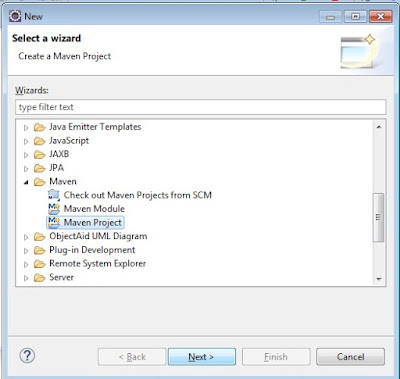
1. In Eclipse goto File--> New --> Other

2. Browse and Select Maven --> Maven Project --> Next.

How to Build AEM project in Eclipse using AEM Archetype


3. Click Next again.


How to Build AEM project in Eclipse using AEM Archetype


4. Choose the "AEM" Archetype from the Catalog dropdown.

5. Choose the "aem-project-archetype" from the list of options.


How to Build AEM project in Eclipse using AEM Archetype

6. Click Next. It will download some required artifacts.


How to Build AEM project in Eclipse using AEM Archetype


7. Now enter the required details as shown below.


How to Build AEM project in Eclipse using AEM Archetype


8. Now click Finish.
9. You will now have a project Structure like this.


How to Build AEM project in Eclipse using AEM Archetype

10. Please DO NOT worry if you see red marked errors in the project.After a build it will disappear.


Step 3: Building the AEM Maven Project

Now after we have created the basic project structure we nee to build our project.

1. Right click on the parent project "newProject".

2. Go to Run As. Click the second option 2 Maven Build.

How to Build AEM project in Eclipse using AEM Archetype


3. Type in clean install in the Goals text box.
How to Build AEM project in Eclipse using AEM Archetype


NOTE:If you are using any External API Jars then please add the depenencies in your pom.xml before building. Else the build will fail.


4. It will start the build and download many resources.

How to Build AEM project in Eclipse using AEM Archetype
5. Downloading may take upto 30 Minutes. So please be patient.

6. After the Build we will see how we can use our project to build AEM Applications.


THE NEXT PART...

AEM Project Structure in Eclipse


AEM Query Builder URL


AEM Query Builder Debugger URL


You can access the AEM Query Builder Console at this URL...


http://<host-name>:<port>/libs/cq/search/content/querydebug.html

tidyjsonwriter example codermagnet


TidyJSONWriter Example/ TidyJSONWriter Sample/ TidyJSONWriter Tutorial

JSONWriter provides a quick and convenient way of producing JSON text. The texts produced strictly conform to JSON syntax rules. No whitespace is added, so the results are ready for transmission or storage. Each instance of JSONWriter can produce one JSON text.


TidyJSONWriter Sample code:

<%@page session="false"%>
<%@include file="/libs/foundation/global.jsp" %>
<%@page contentType="application/json" pageEncoding="utf-8" import="com.day.cq.commons.TidyJSONWriter;" %>
<%

    String elements[] = {"Java","AEM","JCR","Codermagnet"};  
    TidyJSONWriter w = new TidyJSONWriter(out);              
    
    w.setTidy(true); //If true, output will be pretty printed
    w.array();       // Start array

        for(int i=0;i<elements.length;i++)
        {
            w.object();   //Every time a new object is created
            w.key("index").value(""+(i+1));
            w.key("value").value(elements[i]);
            w.endObject();
        }

    w.endArray();

%>


Output:

[{
    "index": "1",
    "value": "Java"
  },{
    "index": "2",
    "value": "AEM"
  },{
    "index": "3",
    "value": "JCR"
  },{
    "index": "4",
    "value": "Codermagnet"
  }
]


Simple tutorial on writing AEM listeners.

Listeners are functions written in languages like JavaScript (JS) that helps you to trigger various operations with respect to events. These are helpful in situations like client side validations and operations. For example you can trigger a form field validation on submit of a form with a AEM listener.

In this tutorial I will demonstrate simple listeners examples to give you a head start in its implementation.


Question 1: Where to place a listener?

This depends on you actually and also the type of listener that you are writing.
For example a dialog listener is kept in the dialog root level as shown below.


Question 2: How to write it?

This is very simple. A simple listener looks like this.


Question 3: How to find the event method names?


So here I have used the "beforesubmit" event as shown in the picture above.
To get a list of events for the particular CQ element just go here AEM Widgets API and make a search for your element.


Now browse down and find the list of Public Events.Use the one you need. Here I have used the "beforesubmit"


Question 5: Lets Try an EXAMPLE...Shall We?

So consider a scenario where we have two fields say name and email.

Requirement:
Lets suppose we have the following requirement.

1.Both fields can be kept empty.
2. If a name is entered then we must enter an email also. That means we cannot have a name without an email address.

Step 1: So to begin with lets create a dialog structure as shown below.


Step 2: Double Click on the dialog. It should look like this.


Step 3: Now create a nt:unstructured node called "listeners" just under the dialog.


Step 4:
Now add a property "beforesubmit"
Choose type as String.
Copy and paste the following code in the value field.

function(dialogObj){
 
 var name = dialogObj.getField("./name").getRawValue();
 var email=dialogObj.getField("./email").getRawValue();
 
 if(name.length>0){
 if(email.length>0)
 {
  return true;
 }
 else
 {
  alert("If you enter a name, you must enter an Email as well..!!");
  return false;
 }
 }
}

It should look like this.
AEM listener property codermagnet

Step 4:
Now go to authoring mode.
Drag and drop your component and edit it.


Step 5:
Click on the "OK" button. See the validation kicks in and throws an alert.


sidekick not visible

How to display sidekick in AEM page template.

In AEM the sidekick is an important UI to get access to various components in our application.
Its very important to get access to it while authoring our pages.

Here are some causes which answers the question

Why the AEM sidekick is not visible?

1. Viewing in Touch UI editor.
The latest versions of AEM opens a page to be authored in Touch UI. The sidekick is accessible in the Classic UI. To go to the classic UI you can do the following.
    
i. Replace the editor.html from the URL with cf#. So this means

Editor  Mode      (Sidekick Hidden):      http://localhost:4502/editor.html/content/myProject/abc.html
Classic UI Mode (Sidekick Visible):  http://localhost:4502/cf#/content/myProject/abc.html

ii. From the menu open Classic UI.

For doing this click on this button sidekick not visible on the left top corner of the editor.
Select "Open in Classic  UI" from the drop down menu.
sidekick not visible


2. Including the init.jsp file.

As the name suggests the init.jsp file helps to initialize vital components to load the side kick. If you don't include this file then the AEM sidekick will not be visible.

To include the file copy and paste the line below to your Page Component. (Page component is the component which you use to create the page template.)


<cq:include script="/libs/wcm/core/components/init/init.jsp"/>


3. A component causing error which prevents sidekick to load.

In some cases the sidekick is not able to load one of the components added to the paragraph system in design mode. This could be due to a problem with the component.

To fix this we need to delete our ewly added components one by one until the problem component is found.

To do this:
  • Log into CRXDE.
  • Navigate to /etc/designs/[your application name].
  • The structure in /etc/designs is parallel to your templates' content structure. 
  • For example, /etc/designs/geometrixx/jcr:content/homepage/par is a paragraph system in Geometrixx's homepage template. 
sidekick not visible

On expanding the homepage node.

sidekick not visible

So we can one by one delete the components like section/colctrl/section/..... until the problem component is found.